

Advanced Features - Logs
Overview
On this tab, you can configure TSplus Logs settings.
By default TSplus doesn’t create logs, to avoid performance issues.
Logs exist to find more easily the origin of the errors encountered on TSplus and you can enable them by doing so:
-
go to
C:\wsession -
create the folder ‘Trace’. Logs will automatically be created there, per user.
You will need to activate the log generation in the AdminTool > Advanced > Logs
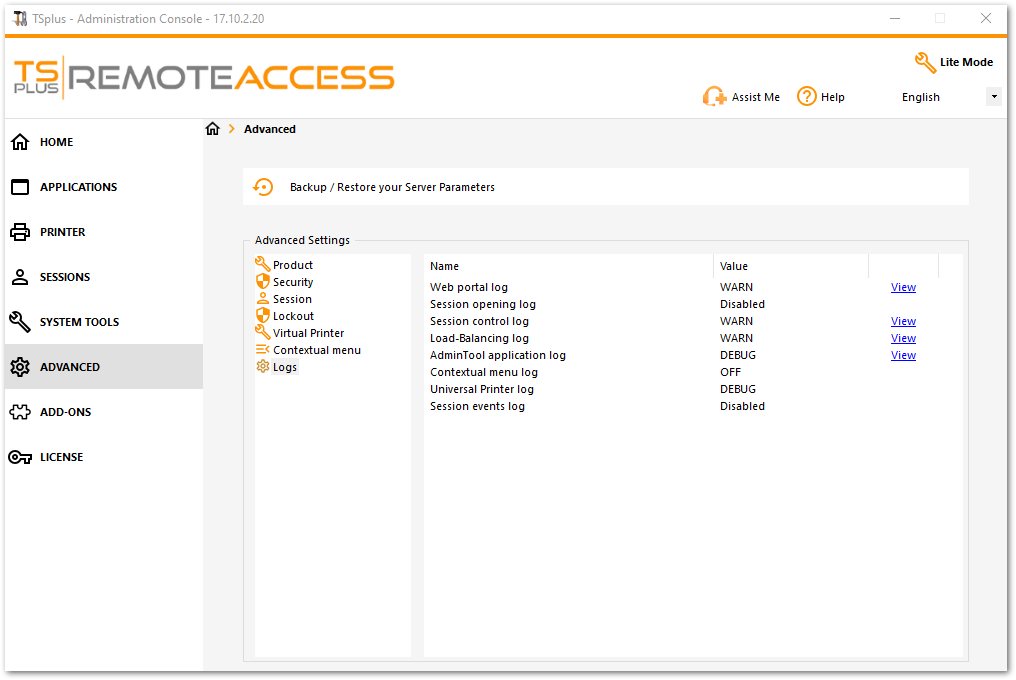
There are 5 types of logs:
-
The Web Portal log,
-
The Session Opening log,
-
The Session control log,
-
The Load-Balancing log and
-
The AdminTool application (interface) log.
Log levels correspond to different components, our support team will tell you what value to put according to the problem encountered.
Here are the different log file names and locations:
-
Web Portal log: “C:\Program Files (x86)\TSplus\Clients\www\cgi-bin\hb.log”
-
Session Opening log: “C:\wsession\trace”
-
Session control log: “C:\Program Files (x86)\TSplus\UserDesktop\files\APSC.log”
-
Load Balancing log: “C:\Program Files (x86)\TSplus\UserDesktop\files\svcenterprise.log”
-
AdminTool application log: “C:\Program Files (x86)\TSplus\UserDesktop\files\AdminTool.log”
-
RDS-Knight / TSplus Advanced Security: “C:\Program Files (x86)\TSplus-Security\logs”
You can enable the logs for Connection Client on the client side by adding the following registry key:
[HKEY_LOCAL_MACHINE\SOFTWARE\Digital River\ConnectionClient] “Debug”=“true”
The logs are located in C:\Users<Username>\RDP6\logs directory if installation is per user or in C:\Program Files (x86)\Connection Client\RDP6\logs directory if installation is for all users.
Installation and Update Logs:
During installation or update, TSplus automatically generates log files to help you track setup actions or troubleshoot installation issues.
Log files are stored in the temporary folder of the user account running the setup :
C:\Users<Username>\AppData\Local\Temp\
File naming standard:
Setup TSplus Remote Access.txt (Main setup log)
Setup Log YYYY-MM-DD #XXX.txt (Detailed execution logs by date)
These log files are automatically included in the log export feature from the License menu.
Enable Troubleshooting Mode
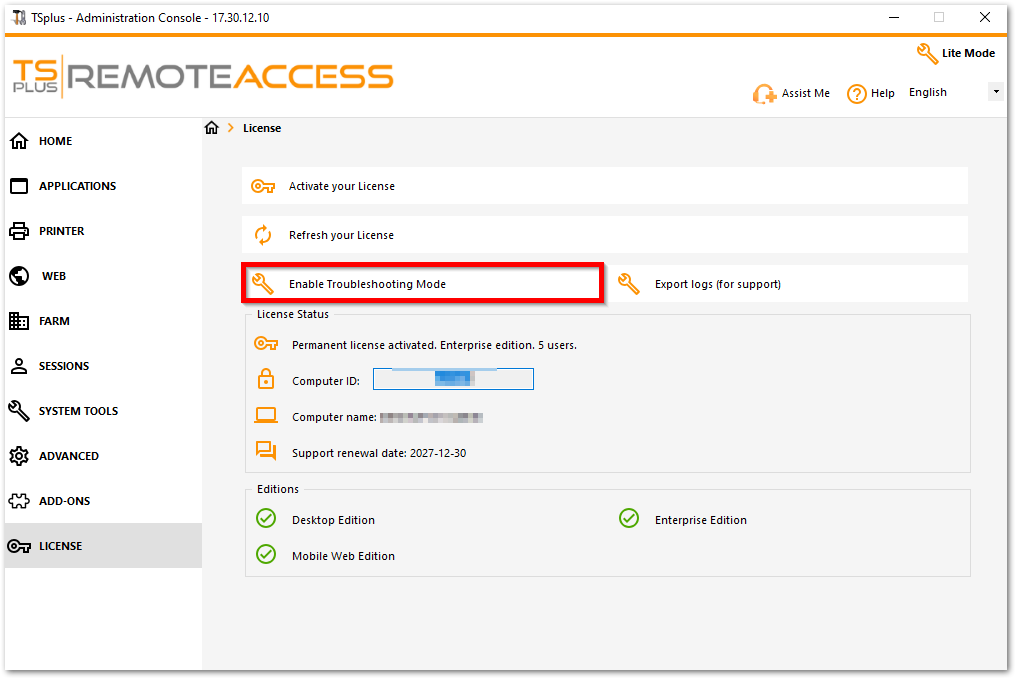
Go to the “License” tab Click on the “Enable Troubleshooting Mode” button.
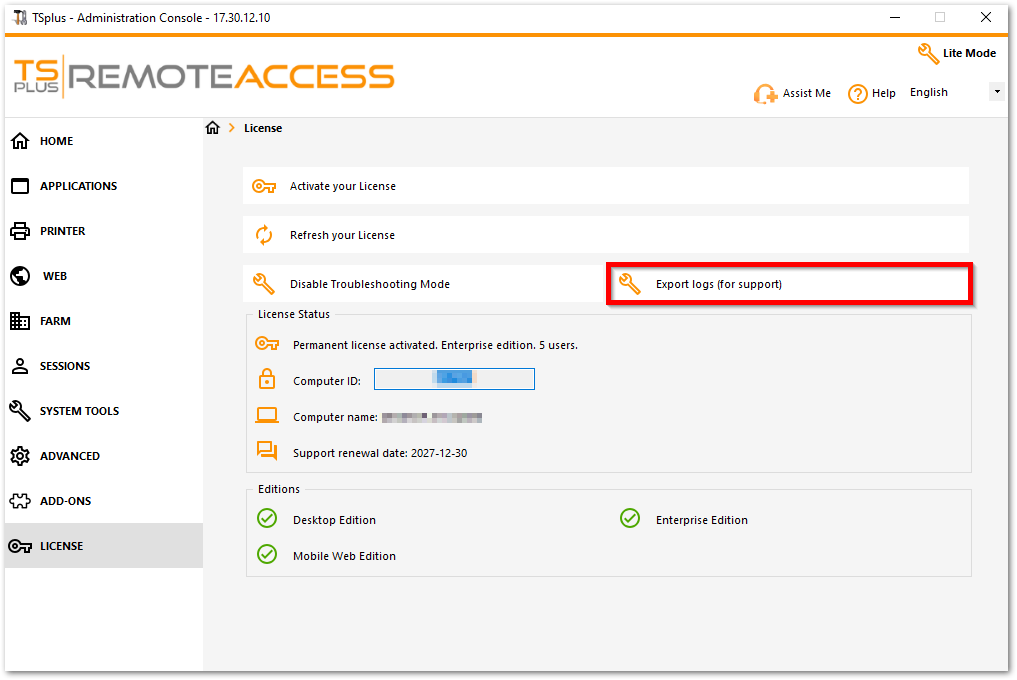
Reproduce your problem, then click on the “Export logs (for support)” button to send the logs to the support team by email.
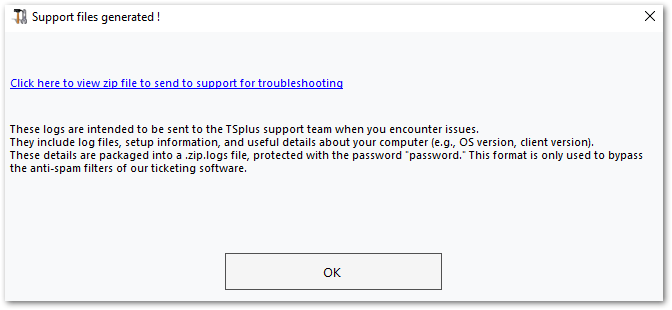
The format of the file to send is .zip.logs files and is protected by the password “password”.