Any Windows connection from the Terminal Service Plus Web Portal
Any HTML5 connection from Terminal Service Plus Web Portal.
Warning: this feature is not supported for:
Any RDP client (mstsc for example).
Web Browser behaviour (Web Portal):
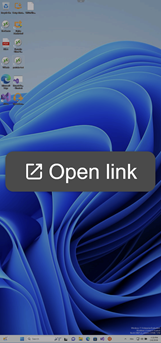
Some web browsers —particularly on iOS devices— do not allow links to be opened automatically from our application.
In these cases, a clickable link is displayed so users can manually access the intended destination.
Changing the server default web browser
All URL’s that are not defined to be opened on client side will continue to be opened on server side, using Microsoft Edge or Internet Explorer.
If you want to change the default web browser used on the server side, you need to edit the configuration file urlonclient_list.ini located in the TSPlus installation folder.
The exact location (depending on your exact installation path) should be : “C:\Program Files (x86)\TSplus\UserDesktop\files\urlonclient_list.ini”.
The you need to add a new section “DefaultBrowser” in the file, and an entry “Path” with value the path of the web browser you want.
Like so :
[DefaultBrowser]
Path=C:\Path\To\Your\Favorite\WebBrowser.exe
Setting default browser to Brave
⚠ If you have replaced firefox.exe by c:\wsession\URLonClient.exe
and you want Firefox to be your default web browser on server side :
Rename the old firefox.exe file into firefox-real.exe.
use the new executable name in the urlonclient_list.ini file :
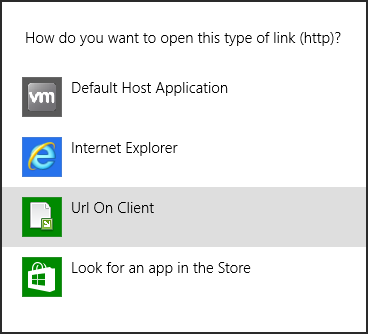
Starting with Windows 8, Microsoft has forbidden automatic change of user’s default browser.
This is why, once the feature is activated on the server, every user will have to choose ‘Url On Client’ when asked for a default browser.
This window will only be displayed the first time a user opens a web link.
Unfortunately, this is Microsoft Windows policy and we are not aware of any workaround.
Would you like to see the site in a different language?


 Setting default browser to Brave