

TSplus Client Setup program
Installation
On client side, each user will have to run a signed program named “Setup-ConnectionClient.exe” as a pre-requisite.
The Connection Client setup program is available on your server, in the TSplus Remote Access setup folder at C:\Program Files (x86)\TSplus\Clients\WindowsClient\Setup-ConnectionClient.exe.
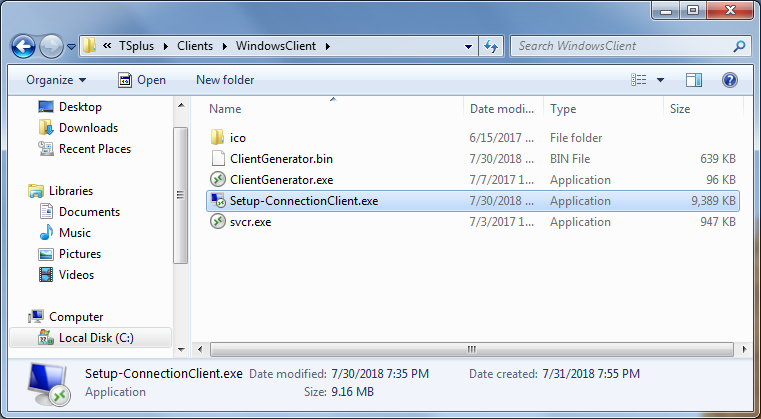
The Connection Client setup file can also be downloaded from your TSplus Remote Access server using the following Web address : http://your.domain.com/ConnectionClient/Setup-ConnectionClient.exe
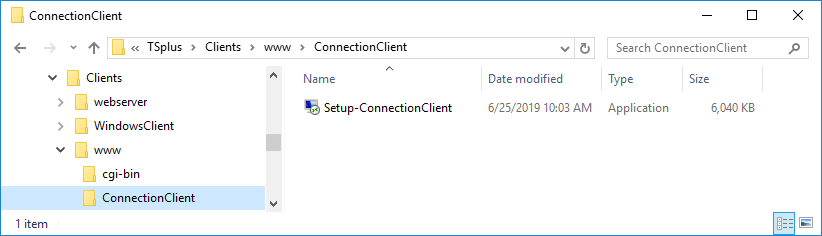
Alternatively, the latest version of the Connection Client setup program is available at downloading it
Note: Since TSplus 12.40, The Connection Client setup program and the RemoteApp client setup have been merged and can be deployed with one single setup. So if you download the Connection Client setup program, there will be no need to download the RemoteApp Client one.
Installation modes
You can install the Connection Client for the current user or for all users. The second option means that once installed, any user on the computer will benefit from it, and will be able to connect using RemoteApp mode from the Web Portal, as well as with a generated .connect client file.
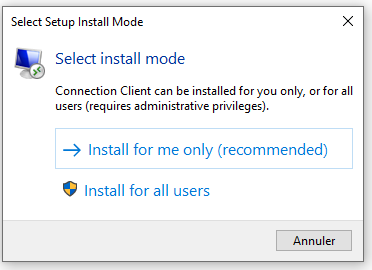
You can choose to install the Connection Client for the current user or for all user the first time the client is installed. This choice will be remebered for future updates.
You can also, during an installation using commandline, specify which mode you want to use with the argument /ALLUSERS or /CURRENTUSER to install respectively for all users, or for the current user.
Enable RDP file signature to prevent security warnings
Context
Starting with the April 2026 security update, the Remote Desktop Connection app shows new security warnings when you open RDP files. This change impacts generated clients from the Client Generator.
See https://learn.microsoft.com/en-us/windows-server/remote/remote-desktop-services/remotepc/understand…
Prerequisites
Your client workstation must be allowed to contact licenseapi.dl-files.com on port 443.
Registering RDP signing certificate during setup
To prevent these pop-ups from appearing, the following changes have been made to the Connection Client setup program (v127):
- The Connection Client setup installs our new RDP signing certificate in the Trusted Root Certification Authorities store.
- The Connection Client setup registers the certificate thumbprint as a trusted
.rdppublisher. This requires administrator privileges.
As a result, when you install the Connection Client for you only as a standard non-administrator user, you will now see a new setup page.
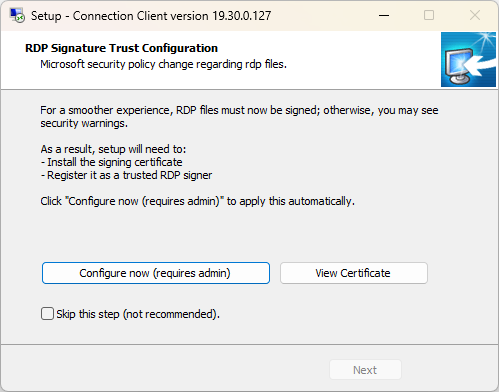
This page invites you to click Configure now to install the RDP signing certificate and register it. Doing so will prompt you to elevate to administrator privileges.
Unfortunately, we must request elevation here, because registering a certificate thumbprint is not possible for a non-administrator user.
This page does not appear when you install the Connection Client for all users, because this mode starts the setup with administrator privileges. In that case, the certificate can be installed and registered automatically, without asking the user to elevate.
How to apply the changes silently
An administrator can run the following command on the client machine to install the Connection Client and configure the machine silently, for example through Group Policy or WinRM:
Setup-ConnectionClient.exe /SP- /VERYSILENT /SUPPRESSMSGBOXES /FORCECLOSEAPPLICATIONS /ALLUSERSTroubleshooting
If you need help, please do not hesitate to open a support request at support@tsplus.net and share your client log files, connectionclient_*.txt, located in C:\Users\your_username\RDP6\logs. We will be happy to help.